

Contents
- Before you start: check the programme and your location
- 1. Geographic restrictions and programme rights
- 2. VPN and proxy detection
- 3. Incorrect IP location data
- 4. Account, postcode and TV Licence requirements
- 5. App-store and device-region settings
- 6. Device, browser or app compatibility
- 7. Connection problems and service outages
- Diagnostic table: symptoms and first checks
- Conclusion: what you can fix and where access is restricted
- FAQs
UK TV Not Working Abroad? 7 Common Problems Explained
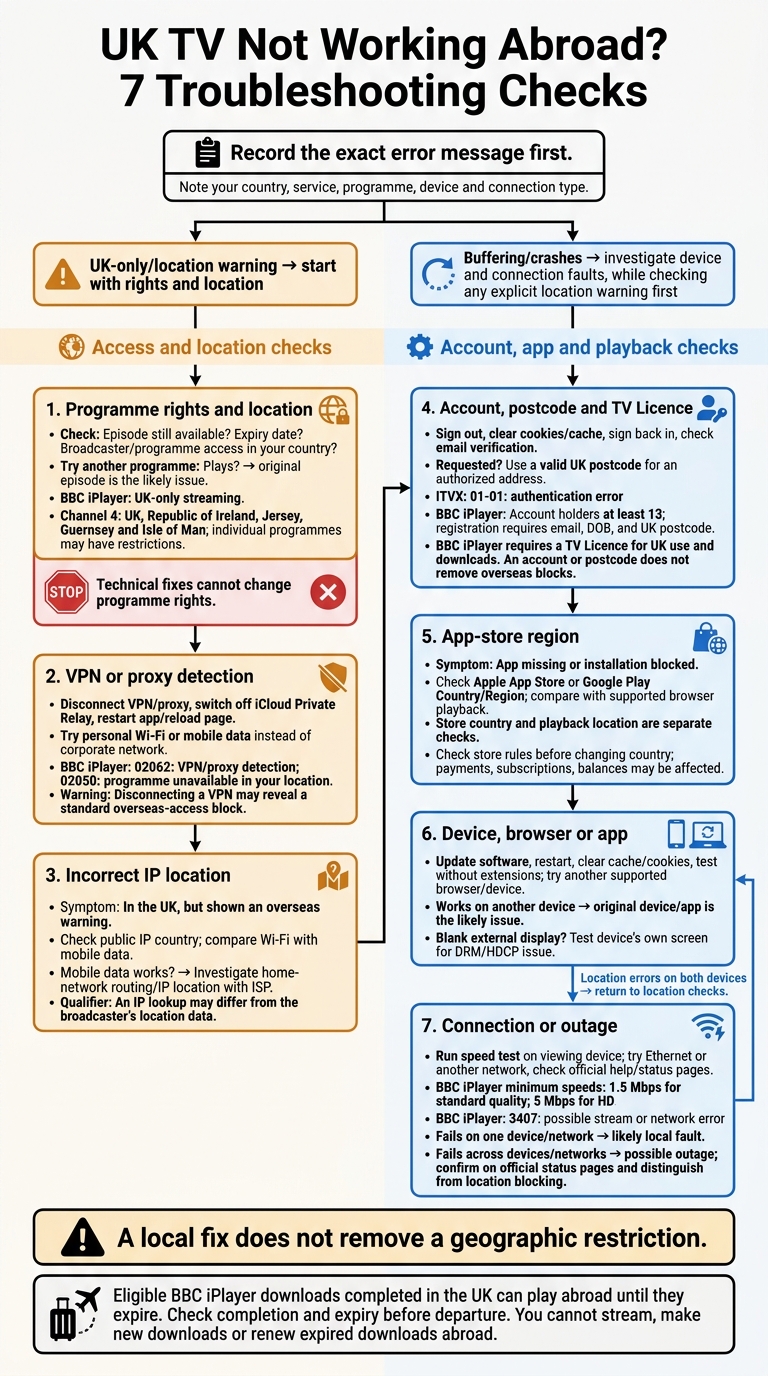
UK TV not working abroad? I’d check the exact error message before changing any settings. A UK-only warning points to a location block; buffering or crashes suggest a connection or device fault. A UK account, postcode or SIM won’t remove an overseas block.
I’d work through these 7 possible causes:
- Programme rights: Check whether the episode is still available and allowed in your country.
- VPN or proxy detection: Disconnect it, then restart playback. Abroad, a location block may still apply.
- Incorrect IP location: If you’re in the UK, compare your Wi-Fi connection with mobile data.
- Account or postcode problems: Check your sign-in details, postcode and any TV Licence requirements.
- App-store region: Check your store’s country setting if the app is missing.
- Device or app faults: Update the software and test another supported device.
- Connection problems or outages: Test another network and check the broadcaster’s help pages. BBC iPlayer lists 1.5 Mbps for standard quality and 5 Mbps for HD.
My rule: <u>separate access restrictions from playback faults</u>. Technical fixes won’t change programme rights. For travel, eligible BBC iPlayer downloads completed in the UK can play abroad until they expire.
UK TV Not Working Abroad? 7 Troubleshooting Checks
Before you start: check the programme and your location
Make a note of your country, service, programme, device and connection type (Wi-Fi, Ethernet or VPN). Record the exact error message or code, too.
Start with the programme page. Check that it’s still available and whether it’s live or catch-up. Availability windows vary, so look for the episode’s expiry date.
Next, try another programme on the same service. If it plays, the problem is with the original episode. If nothing plays, test the service in a browser, then on a second device using the same connection. If the episode should still be available, check for geographic restrictions.
Use Beebs for TV schedules, programme details and broadcaster links.
Schedule times follow UK time: GMT in winter and BST in summer. Check your local time difference before searching for a live programme. If it’s listed but still won’t play, move on to rights and location checks.
sbb-itb-0189741
1. Geographic restrictions and programme rights
Symptoms
If the programme is still missing after you’ve checked availability, rights restrictions are the next likely cause. A regional warning, missing programme or greyed-out play button can all point to this. BBC iPlayer may display a warning that it only works in the UK because of rights issues.
Causes
BBC iPlayer is UK-only. Channel 4 is available in the UK, Republic of Ireland, Jersey, Guernsey and the Isle of Man, but some programmes have their own territorial restrictions.
Checks
Check whether the broadcaster allows access at your destination, then look for restrictions on the programme itself.
Before you leave the UK, finish any eligible BBC iPlayer downloads using the app on a supported Android phone or tablet, iPhone or iPad. Check that each download has finished and note its expiry date: you cannot renew expired downloads abroad.
Access restrictions
BBC iPlayer downloads made in the UK can play abroad until they expire. They do not allow you to stream programmes or make new downloads overseas.
If the programme should be available in your region but still won’t play, check for VPN or proxy detection next.
2. VPN and proxy detection
Symptoms
Playback fails as soon as you press play, even though you signed in without a problem. BBC iPlayer may display error 02062 when it detects a VPN or proxy, or 02050 when a programme isn’t available in your location. ITVX may also show a geo-restriction or VPN detection error if it can’t verify your location.
Causes
VPNs, proxies, iCloud Private Relay and corporate networks can hide your IP address, preventing the service from confirming your location. Privacy extensions can also disrupt location checks or playback.
Checks
Disconnect any VPN or proxy and switch off iCloud Private Relay. Then restart the app or reload the page. If you’re using a corporate network, try your personal Wi-Fi or mobile data instead. Disable privacy extensions and try playback again.
If the browser warning remains, clear the site’s cookies and cache, then reopen the site and sign in again.
Access restrictions
Disconnecting can resolve connection filtering, but if you’re abroad, you may see a standard overseas-access block instead.
3. Incorrect IP location data
If you’ve ruled out a VPN, the service may be mistaking your UK connection for an overseas one.
Symptoms
You’re in the UK, but the service shows an overseas warning, or an IP lookup places your connection in another country.
Causes
ITVX says this can happen when your ISP routes traffic through a server whose IP data is registered outside the UK. Some services also check GPS or browser location permissions. DNS and WebRTC leaks can send conflicting location signals, though not every service uses all these checks.
Checks
Check your country using a trusted IP lookup tool. Then restart your router and check again. A restart may give you a different IP address, but there’s no guarantee.
Next, turn off Wi-Fi on your phone and try the same programme over mobile data. If it plays, that points to your home connection’s routing or IP location data.
Check your browser’s location permissions and any custom DNS settings too. Bear in mind that the service’s location data may differ from the lookup tool’s results. If your IP location still looks wrong, tell your ISP which country appears and which service is affected, and ask it to investigate. If these checks show no location problem, move on to your account and postcode details.
4. Account, postcode and TV Licence requirements
Symptoms
BBC iPlayer, ITVX, Channel 4 or Channel 5 may keep sending you back to sign-in, reject your postcode, or let you log in but block playback. ITVX error 01-01 means there’s an authentication error.
Causes
Expired sessions, faulty cookies or incorrect login details can cause sign-in loops. If you can log in but still can’t play anything, check your location and device settings next.
Checks
Sign out fully, clear the broadcaster’s cookies and cache, then sign back in. Check that you’ve verified your email address. If you need to reset your password, use the service’s password recovery option.
If the service asks for a postcode, enter a valid UK postcode for an address you’re authorised to use. Include the correct space between the two parts - don’t use a ZIP code, Eircode or made-up postcode.
BBC iPlayer also requires account holders to be at least 13 and provide an email address, date of birth and UK postcode.
Access restrictions
A valid account or postcode won’t remove overseas blocks. BBC iPlayer still requires a TV Licence for UK use and downloads.
If those details are correct, check your app-store and device-region settings next.
5. App-store and device-region settings
If you can sign in but the app is missing or blocked, check your store-region settings next.
Symptoms
BBC iPlayer or ITVX may be missing from the store, installation may be blocked, or you may see the error message Not available in your country. You might also find a localised version with less content, even though the service works in a supported desktop browser.
Causes
Store country and playback location are separate checks. Your Apple App Store or Google Play account country controls which apps you can download.
Checks
Compare the app with browser playback using the same streaming account. If only the app fails, check your app and store settings first. This points to an app-specific issue, but it doesn’t prove a region mismatch.
- iPhone: Settings → [your name] → Media & Purchases → View Account → Country/Region.
- Android: Google Play → Settings → General → Account and device preferences → country setting.
Check your device region, app permissions and location access too. Before changing country, check the store’s rules: the change may affect payment methods, billing addresses, subscriptions and balances.
Access restrictions
Installing the UK app does not remove geographic playback restrictions. Browser access still depends on location checks.
6. Device, browser or app compatibility
Once rights and location checks are clear and the app is installed, check the device, browser or app itself.
Symptoms
Crashes, a player that hangs or a blank screen can point to a device or browser fault. Missing sound and frozen controls are other signs.
Causes
Outdated apps, browsers or TV firmware can stop playback, as can a corrupted cache, blocked cookies, disabled JavaScript or extensions. A blank external display may indicate a DRM or HDCP content-protection issue.
Checks
Update the app, browser and device software, then restart the device. If you’re watching in a browser, clear its cache and cookies, enable JavaScript and disable extensions - especially ad blockers. If playback still fails, try another supported browser.
For an app that still won’t work, clear its cache, then reinstall it. If the player is blank on an external display, try the computer’s own screen to help isolate an HDCP issue.
Fault diagnosis
Try the same programme on another supported device using the same connection. If it plays, the problem is with the original device or app. Being able to sign in on the website doesn’t prove that the TV app supports your device. If both devices show a location error, stop checking compatibility and return to location checks.
7. Connection problems and service outages
Symptoms
Repeated buffering, a blurred picture, time-outs or pages that won’t load usually point to a connection fault or broadcaster outage. BBC iPlayer error 3407 can indicate a stream or network error.
Causes
Slow or unstable internet, weak Wi-Fi, other downloads or a temporary broadcaster outage can interrupt playback.
Checks
Check whether the broadcaster’s website loads, then run a speed test on the device you’re watching on. BBC iPlayer needs at least 1.5 Mbps for standard quality or 5 Mbps for HD.
Try an Ethernet connection or restart your router if needed. Before changing account settings, check the broadcaster’s official help or status pages.
If playback still fails, compare results across devices and networks.
Fault diagnosis
To tell a network fault from an outage, test the service in both the app and website. Then try another device and a different network, such as mobile data.
If the service fails on just one device or Wi-Fi network, the fault is likely local. If it fails across devices and networks, a broadcaster outage is more likely.
Use the table below to match the symptom pattern to the likely cause.
Diagnostic table: symptoms and first checks
Use this table after the checks above to match your symptom with the first thing to check.
| Symptom | Likely cause | First check |
|---|---|---|
| Overseas-location warning | Geographic restrictions, incorrect IP location data or a flagged VPN/proxy address. | Check which country your public IP address shows. |
| App missing from the store | A non-UK Apple ID or Google Play country setting. | Check the store account’s Country/Region, not your phone’s GPS location. |
| App crashes on one device | Corrupt app data, outdated software or device incompatibility. | Check for app and system updates, then clear the app cache if your device supports it. |
| Blank browser screen | Interference from extensions, stale cookies or a DRM problem. | Disable ad-blockers and other extensions, then try again in a private window. |
| Video with no sound | A possible DRM or HDCP compatibility issue, especially when using an external screen. | Disconnect the external screen and test playback on the device’s own display. Check for browser updates too. |
| Buffering across services | Limited bandwidth, an unstable connection or extra delays from VPN routing. | Run a speed test, then test again with the VPN disconnected. |
| One broadcaster fails across networks | A service outage or blocking by the broadcaster. | Look for an official outage notice or status page. If there isn’t one, check whether the error is a location warning rather than a general loading problem. |
A local fix does not remove a geographic restriction.
Conclusion: what you can fix and where access is restricted
Work through the checks in this order: programme rights and location, then your account, app, device and connection. If everything checks out, look for an official outage notice.
App updates, postcode corrections and device or connection fixes can solve technical problems. But they cannot override licensing rules.
If access is still restricted, check local listings for the programme. Before travelling, download eligible BBC iPlayer programmes while you’re in the UK so you can watch them offline abroad.
FAQs
Can hotel Wi-Fi cause playback errors?
Yes. Slow, unstable or bandwidth-limited hotel Wi-Fi can cause playback errors. BBC iPlayer needs at least 1.5 Mbps for standard quality and 5 Mbps for HD. Speeds below these levels may trigger errors such as 3407.
Test your connection speed, close background apps or connect with an Ethernet cable if one is available. If playback still fails, clear your browser’s cache and cookies or restart the router if you have access to it.
Will reinstalling the app delete my downloads?
The available information doesn’t confirm whether reinstalling the app deletes downloads. However, clearing app data typically removes downloaded content.
Check your streaming app’s settings to find out whether downloads are stored separately or linked to the app installation. If you’re having playback problems, try updating the app, restarting your device or clearing the app cache.
What details should I send support if playback fails?
Send support the exact error message shown on your screen, along with your device details and whether you’re using a browser or an official broadcaster app. Include your current location and confirm whether you’re connected to a UK server.
Also mention any troubleshooting you’ve already tried, such as clearing your cache or restarting. This helps support work out whether the problem is a geographic restriction or a connection issue.